Quick Start
Motion State can seem intimidating at first because of all of the controls, but once you understand the layout, it’s intuitive to use.
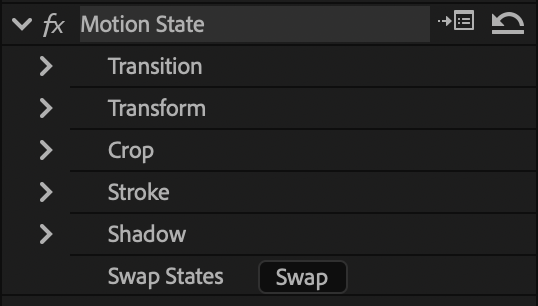
The Effect Controls panel is organized into groups: Transition at the top (with Easing and Motion Blur inside it), followed by Transform, Crop, Stroke, and Shadow. Inside the visual groups, matching A and B controls sit next to each other so you can set the starting and ending values for one property without jumping between separate State sections.
If you have not installed or activated Motion State yet, start with Installation and Activation.
1. Apply Motion State
Section titled “1. Apply Motion State”- Select a clip in your timeline.
- Open the Effects panel.
- Search for Motion State.
- Drag the effect onto the clip.
2. Choose a mode
Section titled “2. Choose a mode”Choose how Motion State should use State A and State B. For a deeper explanation, see State-based Animation.
- A to B: animate from State A into State B.
- B to A: animate from State B into State A.
- A to B to A: animate out and return to State A.
- B to A to B: animate out and return to State B.
- Hold A: show State A without animating.
- Hold B: show State B without animating.
- Manual: drive the animation yourself with the Transition Progress control.
- Continuous: animate from State A at a constant speed for the whole clip, with no State B target.
3. Set the timing
Section titled “3. Set the timing”Choose where the animation should happen on the clip:
- Aligned to the start of the clip
- Aligned to the end of the clip
- Spread across the duration of the clip
For start- or end-aligned animation, set the Duration value in seconds.
Use Delay when you want the move to start later, finish earlier, or hold briefly at both ends of a round-trip animation. See Timing and Easing for more detail.
4. Set State A
Section titled “4. Set State A”State A is one visual state of the clip.
Set State A controls such as:
- Position
- Scale
- Rotation (or X/Y/Z Rotation with Basic 3D enabled)
- Opacity
- Crop
- Stroke
- Shadow
For details, see Transform Controls, Crop and Shape Controls, Stroke Controls, and Shadow Controls.
5. Set State B
Section titled “5. Set State B”State B is the other visual state, and contains identical controls to State A.
Adjust the matching State B controls to create the target look you want the clip to animate toward.
6. Adjust easing
Section titled “6. Adjust easing”Use easing controls in the Transition section to shape how the movement animates.
You can choose between Bezier, Spring, and Bounce easing. See Timing and Easing for the full control breakdown.
You can interactively set the animation easing curve using the graph editor.
All properties between states will be animated with identical timing and easing.
Enable motion blur when fast movement needs a more natural look.
7. Preview the animation
Section titled “7. Preview the animation”Play the timeline and adjust timing, easing, and state values until the movement feels right.
8. Optional: save your setup as a preset
Section titled “8. Optional: save your setup as a preset”Once the motion feels right, save it so you can reuse it on future clips or projects.
The recommended way is the Motion State panel: select the clip, open the Presets tab, and click + New Preset. Your preset joins the built-in library and can be applied to any clip with one click, organized into collections, and shared.
You can also save it as a native Premiere Effect Preset by right-clicking the effect and choosing Save Preset..., if you prefer to keep it in Premiere’s own Effects panel.