Installation and Activation
Install Motion State
Section titled “Install Motion State”- Close Premiere (and After Effects).
- Run the Motion State installer for your operating system.
- Reopen Premiere.
- Open the Effects panel.
- Find Motion State under Video Effects > Jake In Motion.
The installer also installs the companion Motion State extension, which you open from Window > UXP Plugins > Motion State. See The Motion State Panel.
Updating from an earlier version
Section titled “Updating from an earlier version”Later updates, including 1.1.1, do not need the cache reset. Install with Premiere closed and reopen it as usual.
Version requirements
Section titled “Version requirements”- Effect: Premiere version 25.0 or newer.
- Panel: Premiere version 25.6 or newer.
The Motion State effect may work on older versions of Premiere, but it has not been tested. The extension is UXP format, and requires version 25.6 or newer to work. You can still use the effect without the extension. See Platform Support.
For Windows GPU acceleration, use an NVIDIA GPU with CUDA support. Windows computers with AMD or Intel graphics use CPU fallback.
See Platform Support for details.
If Motion State does not appear in Premiere, see Troubleshooting.
After Motion State is installed and activated, continue with the Quick Start.
Activate Motion State
Section titled “Activate Motion State”Motion State uses a license key to unlock the plugin after purchase. Until this computer is activated, a watermark is rendered over any clip with Motion State applied: diagonal bars plus a message explaining how to activate.
First, find your license key in your receipt email or by visiting Lemon Squeezy. Then activate from either the panel or the effect. Both do the same thing, and either one activates this computer for both.
From the panel
Section titled “From the panel”Added in 1.1.1. Nothing needs to be applied to a clip, so this is usually the quickest way.
- Open the panel from Window > UXP Plugins > Motion State.
- Click the Not activated badge in the panel’s tab bar, or choose License from the ☰ menu.
- Paste your license key.
- Click Activate.
The badge disappears once this computer is activated.
From the effect
Section titled “From the effect”- Apply Motion State to a clip in Premiere.
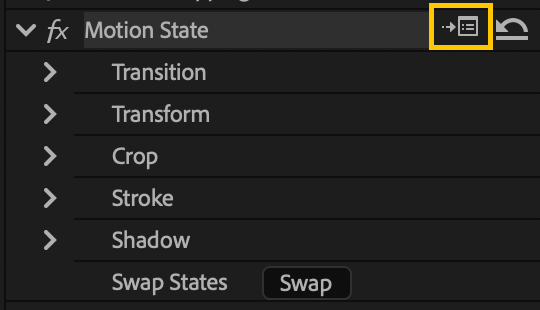
- In Effect Controls, click the small Setup/options icon in the Motion State effect header. The dialog is Motion State’s Register dialog.
- Paste your license key.
- Click Activate.
Once activated, Motion State remembers this computer.
The Register dialog also includes:
- Docs: opens these Motion State docs.
- Send Feedback: opens a native feedback form for general feedback, bug reports, or feature requests.
- Renderer: which renderer actually produced the last frame.
Checking which renderer ran
Section titled “Checking which renderer ran”The Register dialog reports the renderer so you can confirm whether Motion State is using your GPU:
| What it shows | What it means |
|---|---|
GPU (CUDA) | Hardware accelerated on an NVIDIA GPU |
GPU (Metal) | Hardware accelerated on macOS |
CPU - GPU unavailable: … | Running on the CPU fallback, with the reason the GPU declined |
not yet rendered | No Motion State frame has rendered yet. Play or scrub the clip first |
If you see the CPU fallback and expected GPU acceleration, include that whole line when you contact support. See Platform Support.
Machine limit
Section titled “Machine limit”A Motion State license can be active on a maximum of 2 computers at the same time.
If you need to move Motion State to another computer, deactivate the old computer first (from the panel’s License dialog, or from the effect’s Setup/options icon), or manage the order from Lemon Squeezy.
Offline use
Section titled “Offline use”After Motion State has been activated, it can continue working for a limited time without an internet connection.
You will need an internet connection to activate, deactivate, or refresh license status.