Quick Start
The Starter Pack
Section titled “The Starter Pack”A fresh install opens on the Starter Pack: 29 working buttons in 6 folders, covering five of the six button types. Click around; everything in it is safe to run and easy to undo.
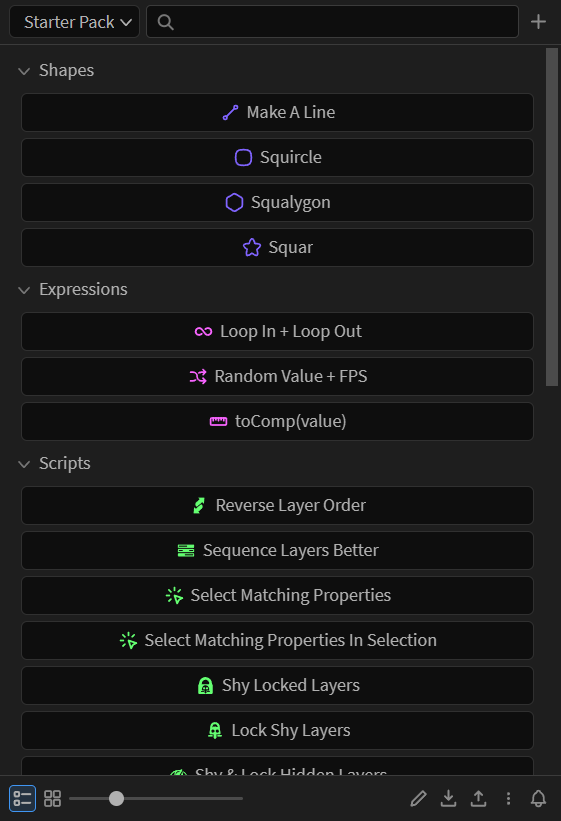
Run a button
Section titled “Run a button”Select the thing the button acts on, then click it:
| Button type | Select first |
|---|---|
| Script | Whatever the script expects |
| Expression | The properties to apply it to |
| Preset | The layers to apply it to |
| Menu command | Whatever that menu item needs |
| Ease | The keyframes to ease |
Click a folder to expand or collapse it. Folders can hold folders.
A button can also carry more than one action: hold Alt, Shift or Ctrl (Command on macOS) as you click, or long-press the button to see everything it can do. See Alternates.
Find a button
Section titled “Find a button”Type in the search box to filter. Folders holding a match open on their own.
Edit and rearrange
Section titled “Edit and rearrange”- Click the pencil to enter edit mode. Clicking a button now edits it, and you can drag buttons and folders to rearrange them.
- Alt-click any button to edit it without turning edit mode on. On a button that binds Alt to an action of its own, Alt runs that action instead; edit mode and the right-click menu still open the editor. Alt-click editing can be turned off under Menu > Settings > Preferences.
- Right-click a button or folder for rename, duplicate, delete, and more.
Make your own button
Section titled “Make your own button”- Click + and choose Add button.
- Name it, pick its type, and add its content: code, a preset, a command, or an ease.
- Click Add button to save.
Or skip the editor entirely: drop files onto the panel. .jsx and .js files become script buttons, .ffx files become preset buttons, several at once, straight into whichever folder you drop them on.
See The Button Editor for icons, colors, and everything else a button can carry.